Listeners:
Top listeners:
-
 play_arrow
Radio Today Radio Today
-
 play_arrow
Game Time Sports Show Mike Stroud
-
play_arrow
Game Time Sports Show Mike Stroud
music_note

Make Room: The Smart Guide to Managing Smartphone Storage
From overflowing photo galleries to apps you barely remember downloading, a cluttered phone can quickly become a digital headache. The good news? A few simple habits can help you reclaim space, improve your phone’s performance and keep your digital life organised.
There is nothing quite as frustrating as reaching for your smartphone to capture a beautiful sunset, only to be greeted by the dreaded message: “Storage Almost Full.” Suddenly, the perfect photo opportunity becomes a frantic search for files to delete.
For many of us, smartphones have become much more than communication devices. They are our cameras, music players, workstations, entertainment hubs and personal archives. Over time, photographs, videos, applications, downloads and cached data quietly accumulate, leaving less room for the things we actually need.
Fortunately, managing smartphone storage does not require technical expertise or a brand-new device. With a little digital housekeeping and a few clever tricks, you can make your phone feel lighter, faster and far more organised.
1. Start with a Storage Check-Up
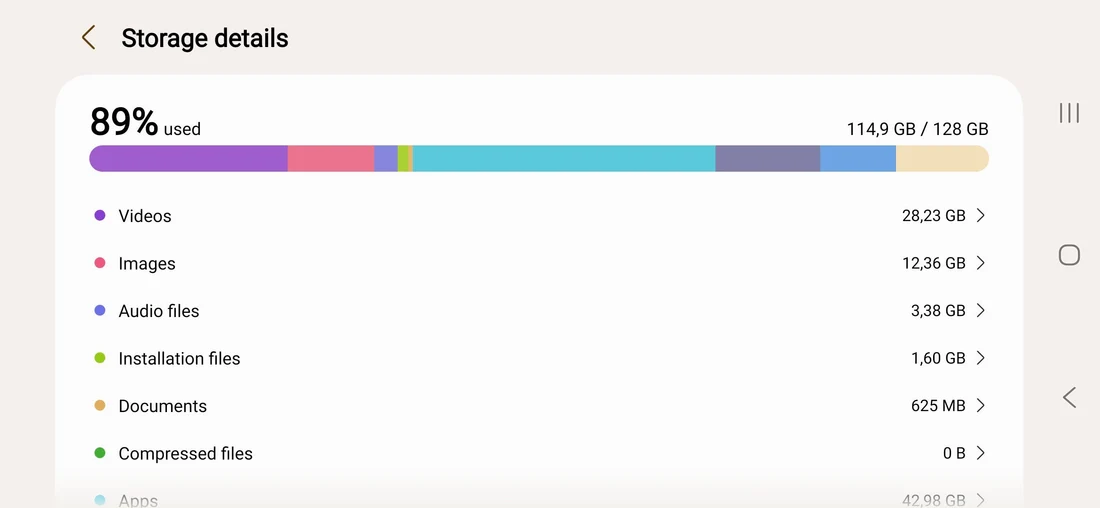
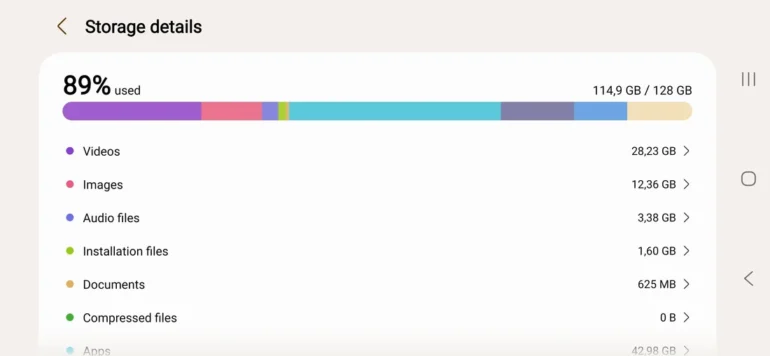
Before deleting anything, find out what is taking up the most space. Both Android and iPhone devices have built-in storage tools that provide a breakdown of how your space is being used.
On an iPhone, go to Settings → General → iPhone Storage. On most Android phones, open Settings → Device Care → Storage. The exact wording may vary by manufacturer and software version.
You will usually see categories such as apps, photos, videos, documents and system data. This overview helps you identify the biggest storage offenders rather than deleting files at random.
Think of it as a digital wardrobe audit: before throwing anything away, establish what you own and what you no longer need.
2. Give Your Photo Gallery a Makeover
Photographs and videos are often among the biggest consumers of smartphone storage. High-resolution images, long recordings and 4K videos can occupy surprisingly large amounts of space.
Start by reviewing your gallery. Remove blurry photographs, accidental screenshots, duplicate images, unwanted downloads and videos you are unlikely to watch again. Pay particular attention to screen recordings and lengthy clips, which can be much larger than ordinary photographs.
Next, consider backing up important memories to a trusted cloud service, such as Apple iCloud Photos, Google Photos or another reputable storage provider.
Some services offer options to optimise device storage or remove local copies after backup. Before using these features, confirm that your files have uploaded successfully and understand whether deleting an item from your gallery will also delete it from the cloud.
A useful rule: Keep your favourite memories accessible, but do not let every accidental photograph live on your phone forever.
3. Declutter Apps You No Longer Use
It is easy to accumulate applications. There is the fitness app downloaded for a January resolution, the shopping app used once during a sale and the game that has not been opened in months.
Each application takes up storage, and some collect additional data as you use them.
Review your installed apps and uninstall those you no longer need. If you are unsure whether you will need an app again, check whether your information is saved to an account before removing it.
iPhone users can also enable Offload Unused Apps, which removes an app while retaining its documents and data for potential reinstallation. Android offers similar options on supported devices, including automatic archiving of unused apps.
Be selective with messaging, banking and authentication apps. Before removing any application, make sure you can recover your account and access any important information it contains.
4. Tackle the Hidden Clutter
Not all storage-hogging files are immediately visible. Temporary files, cached content and offline downloads can quietly take up valuable space.
On Android, you can often clear an app’s cache through its storage settings. This may help with apps that have accumulated substantial temporary data.
However, be careful not to confuse clearing the cache with clearing storage or app data. The latter may remove settings, saved files or login information.
On iPhones, some apps provide their own cache-clearing options. For others, removing and reinstalling the app may help, although you should first confirm that important data is backed up.
Also review downloaded content in streaming and entertainment apps. Offline music, films, podcasts and television episodes are convenient when travelling, but old downloads can consume gigabytes of space.
Delete completed downloads and keep only the content you genuinely need offline.
5. Don’t Forget WhatsApp and Other Messaging Apps
Messaging platforms can be surprisingly demanding on storage, particularly when friends and family regularly share photographs, videos, voice notes and documents.
In WhatsApp, open Settings → Storage and Data → Manage Storage. From there, you can review large files and media shared in chats and remove items you no longer want.
Other messaging applications may offer similar storage-management features.
Consider adjusting automatic media downloads so that every photograph or video does not automatically save to your device. You can also review group chats that generate large amounts of content.
One important precaution: before deleting messages or attachments, check whether they contain documents, family photographs or other information you may need later.
A little organisation can prevent your messaging apps from becoming an unintentional digital filing cabinet.
6. Use Cloud Storage Wisely
Cloud storage can be a valuable ally when your smartphone runs short of space. Services such as iCloud Drive, Google Drive, Microsoft OneDrive and Dropbox allow you to store files online and access them across devices.
This is especially useful for large documents, work files and photographs you do not need to keep downloaded permanently.
However, cloud storage is not automatically free, unlimited or a complete substitute for a backup. Storage plans have limits, and some files marked for offline access may still occupy space on your device.
Before moving important files, confirm that they are fully uploaded and accessible from another device or through the service’s website.
For irreplaceable photographs and documents, consider maintaining an additional backup on a computer or external drive. A single copy, whether on your phone or in the cloud, is not always enough protection against accidental deletion or account problems.
7. Make Downloads Work for You
Your Downloads folder can become a digital dumping ground filled with forgotten PDFs, duplicate documents, installation files and images saved from websites.
Open your file-management app and sort files by size or date, where possible. Delete obsolete documents and duplicate files, and move anything important into clearly labelled folders.
A simple system can make a significant difference. Create folders such as Work, Travel, Receipts and Personal Documents to make essential files easier to find.
Remember that deleting a file from one location may not remove other copies saved elsewhere. If you use multiple cloud or file-management services, check where the file is stored before removing it.
8. Build Better Storage Habits
The most effective storage strategy is one that prevents clutter from building up in the first place.
Adopt a short monthly routine:
- Review your storage breakdown and identify unusually large categories.
- Delete unwanted screenshots, duplicate photos and unnecessary downloads.
- Remove offline films, music and podcasts you have finished using.
- Check messaging apps for large attachments.
- Uninstall or archive applications you rarely use.
- Confirm that important photographs and documents are backed up.
You can also make sensible choices when recording videos. Shorter clips, lower recording resolutions when appropriate and fewer unnecessary screen recordings can save considerable space over time.
If your phone supports expandable storage, such as a microSD card, you may be able to store compatible photographs, videos or documents externally. Keep in mind that not every phone supports this feature, and external storage is not always suitable for applications or every type of file.
9. Know What Not to Delete
When storage is running low, it can be tempting to remove anything that looks unfamiliar. Resist that urge.
Avoid deleting system files or using unfamiliar cleaning applications that promise dramatic performance improvements. Your phone’s built-in storage tools are generally the safest place to start.
Be especially cautious with folders labelled System, Android or similar technical names. Some contain files needed by applications or the operating system.
Before deleting backups, app data or cloud-synchronised files, make sure you understand what the deletion will affect. A file that looks redundant may be the only remaining copy of something important.
And remember: freeing storage space can improve usability, but it will not necessarily fix every performance problem. An ageing battery, outdated software or a demanding application may also contribute to a sluggish phone.
10. When Is It Time for More Storage?
Sometimes, even the most organised smartphone owner reaches the limits of their device.
If you regularly record high-resolution videos, download large games, work with extensive documents or keep years of photographs available offline, your storage needs may simply exceed your phone’s capacity.
Before buying a new device, consider whether moving older files to a computer or cloud service would solve the problem. If you are choosing a new phone, think about your habits rather than buying solely on price.
More internal storage can be a worthwhile investment if you want to keep large media libraries on your device without constantly deleting files.
The key is to choose a capacity that suits your lifestyle, leaving enough room for future photographs, software updates and the applications you rely on.
Read the Original Article here.

















Post comments (0)